My account
The My account button (profile icon), at the top right of every page, opens the account menu:
- My profile: the My account page;
- AI agents: tokens and applications of the API and the MCP service, if the administrator has enabled them (API and MCP);
- Documentation: this documentation, in the language of the interface (if the administrator offers it);
- Sign out.
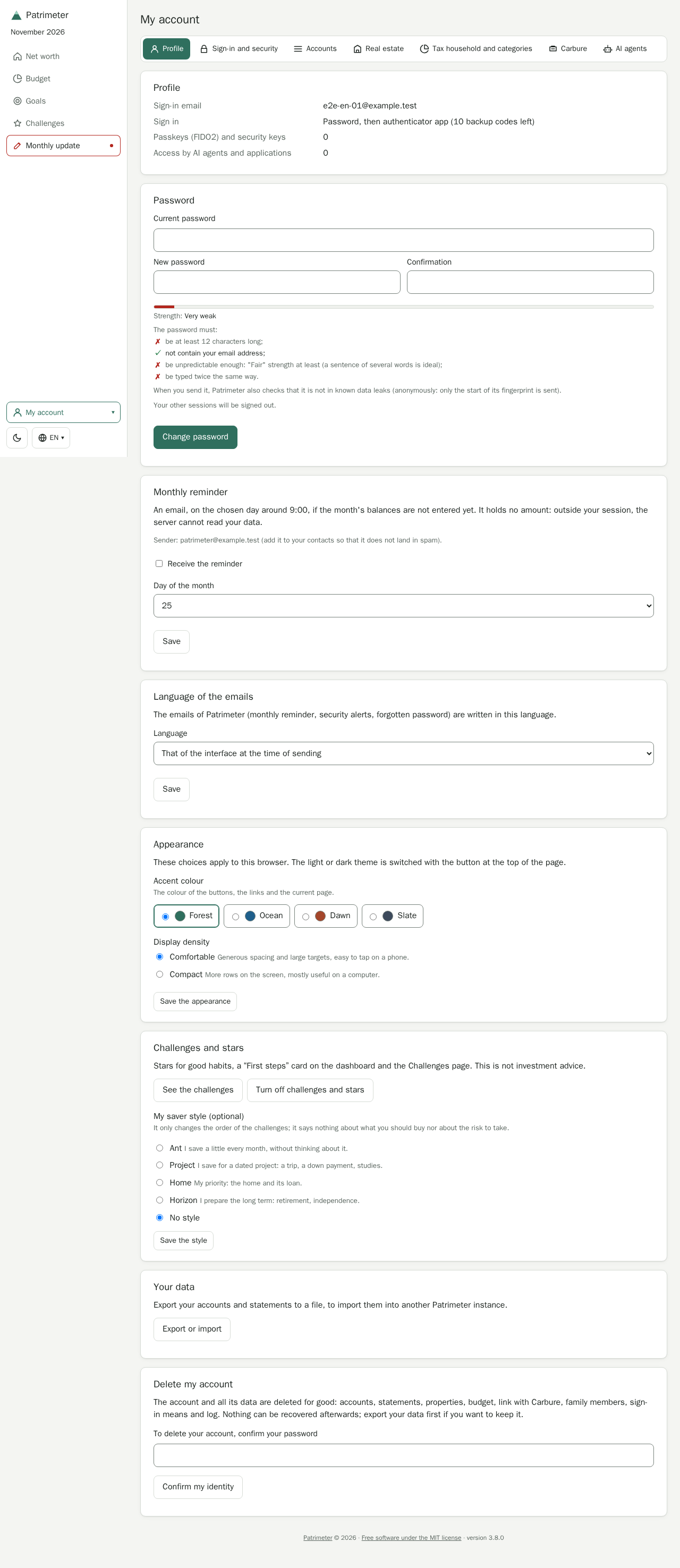
The My account page is split into tabs, to quickly find what there is to set: all the settings are there (accounts, real estate, budget household and categories, Carbure), and the main menu only keeps Net worth, Budget and Monthly update. Sensitive actions (changing app, new backup codes, new recovery key, signing out the other sessions, creating a token, exporting your data, deleting the account) ask you to confirm your identity: password, valid for 5 minutes.
| Tab | Sections | For |
|---|---|---|
| Profile | Profile, Password, Monthly reminder, Language of the emails, Appearance, Your data, Delete my account | Sign-in address and sign-in methods; changing the password (the current one is asked, your data remains readable); monthly reminder by email; language of the emails; appearance of this browser; export and import; deleting the account |
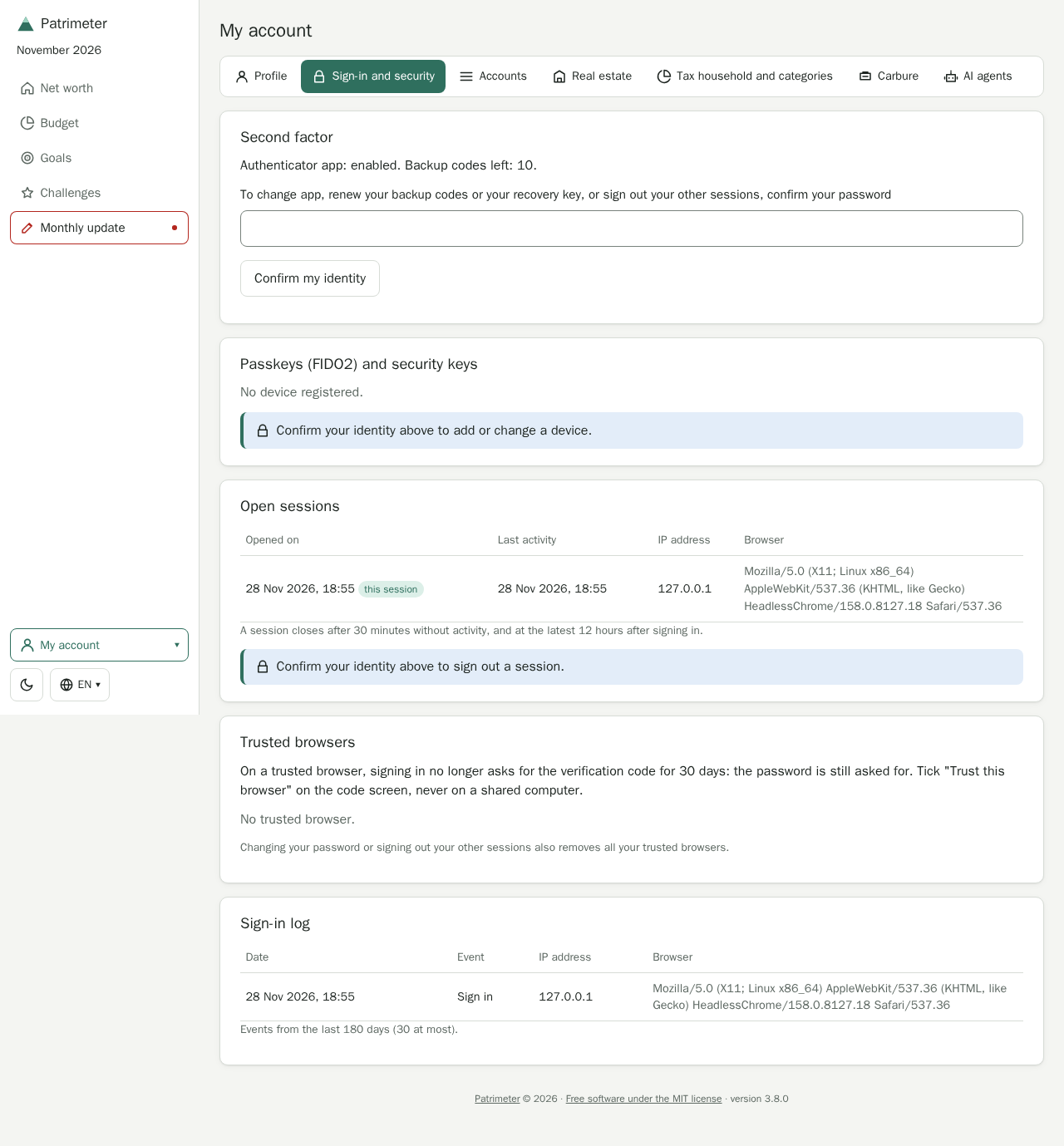
| Sign-in and security | Second factor, Passkeys (FIDO2) and security keys, Open sessions, Trusted browsers, Sign-in log | Changing app, generating new backup codes, new recovery key; adding, renaming or deleting a passkey or a FIDO2 key; open sessions, to sign out one by one or all together; trusted browsers, to remove; successful or refused sign-ins, with the IP address: spot a suspicious attempt |
| Accounts | Accounts by level, archived accounts | Creating, editing, archiving an account or a loan (accounts and loans) |
| Real estate | One table per property | Creating a property and its loans, your share (real estate) |
| Tax household and categories | Tax household, budget categories and items | Adults, children (years of birth), emergency savings target, categories and items (household budget) |
| Carbure | Your instance, mappings | Linking your Carbure instance and matching its categories with those of the budget (Carbure) |
| AI agents | Connect an AI agent, API and applications | Addresses of the MCP service and of the API, personal tokens and access granted to applications (API and MCP); tab missing if the API and the MCP are disabled |
An email warns you of every security change. If you did not make it, it says what to do: change the password from My account, or, when the change may have shut you out (password changed or reset, authenticator app replaced, account deleted), tell the server administrator.
Open sessions
In the Sign-in and security tab, the Open sessions box lists, like the sign-in log, every device where you are signed in: sign-in date, last activity, IP address and browser; yours is marked this session. A session closes on its own after 30 minutes without activity, and at the latest 12 hours after signing in.
Once your identity is confirmed, Sign out closes another session, and Sign out my other sessions closes them all except yours (the API tokens fall too). The device concerned goes back to the sign-in page at its next request. A device you do not recognise: sign it out, then change your password.
To add or change a passkey or a FIDO2 key, the page reminds you, highlighted, to confirm your identity first in the Second factor box.
Trusted browsers
On the verification code screen, tick Trust this browser for 30 days: on this browser, the next sign-ins only ask for the password (or the passkey), without the code, for 30 days. Never tick it on a shared or public computer.
The Trusted browsers box of the Sign-in and security tab lists them: date added, last use, end of validity, IP address and browser; yours is marked this browser. Once your identity is confirmed, Remove removes one, and Remove all trusted browsers removes them all: the code will be asked for again at the next sign-in. Changing your password or signing out your other sessions also removes them all. The sign-in log records each sign-in without code ("Sign-in without code (trusted browser)").
Monthly reminder
Monthly reminder (Profile tab): tick Receive the reminder and choose the day of the month. On that day, from 9:00 (the instance's time), if no balance of the month is entered, Patrimeter sends you an email with a link to the monthly entry; once a month. The section gives the sender's address: add it to your contacts so that the reminder does not land in spam. It holds no amount: outside your session, the server cannot read your data. With the challenges on, it also gives your entry streak and what entering the month would bring to it ("By entering November 2026, your streak goes up to 3 months: a new star of the “Entry streak” challenge."): only the months entered and the stars earned are used, never an amount. The link at the bottom of the email turns the reminder off without signing in (a page, then a button). The reminder only exists if the instance sends emails.
If mail delivery fails, the reminder remains eligible for the next hourly run while the month still needs an entry.
The reminder, like the Update item highlighted in the navigation, only concerns the months in which an account is active: nothing is asked when all your accounts are closed, or opened later.
Language of the emails
Language of the emails (Profile tab): Français, English, or That of the interface at the time of sending (the default choice). It applies to all the emails of Patrimeter: monthly reminder, security alerts, forgotten password, deletion of the account.
Appearance
Appearance (Profile tab): the accent colour, that of the buttons, the links and the current page (Forest, the original colour, Ocean, Dawn or Slate), and the display density: Comfortable (the default), spacious and easy to tap on a phone, or Compact, which shows more rows on the screen. Save the appearance applies these choices to this browser, like the light or dark theme; each colour keeps sufficient contrast in both themes (accessibility).
Deleting your account
Profile tab, Delete my account section: first confirm your identity, type the email address of your account (shown above the field; capital letters and surrounding spaces do not count), then Delete my account and confirm one last time. Another address deletes nothing.
- Everything is deleted: accounts, balances, shares, properties, budget, link with Carbure, family members, sign-in methods (passkeys, backup codes), tokens and access of AI agents, sign-in log.
- Nothing can be recovered, not even by the administrator: export your data first if you want to keep it (your data).
- You are signed out, and an email confirms the deletion. The address can then be used for a new registration.
- The data you had exported to a family account stays there: that account removes it.
Forgotten password
Forgotten your password? on the sign-in page sends a link (30 minutes). Then:
- with your recovery key: new password, data kept;
- with a passkey that unlocks (PRF): sign in with it, then change your password;
- with neither: access is restored, but the data is lost, after explicit confirmation. Nobody, not even the administrator, can recover it.
Lost phone
Sign in with a backup code, then change app in My account. Without a backup code, the administrator can reset your second factor after checking your identity.