First sign-in
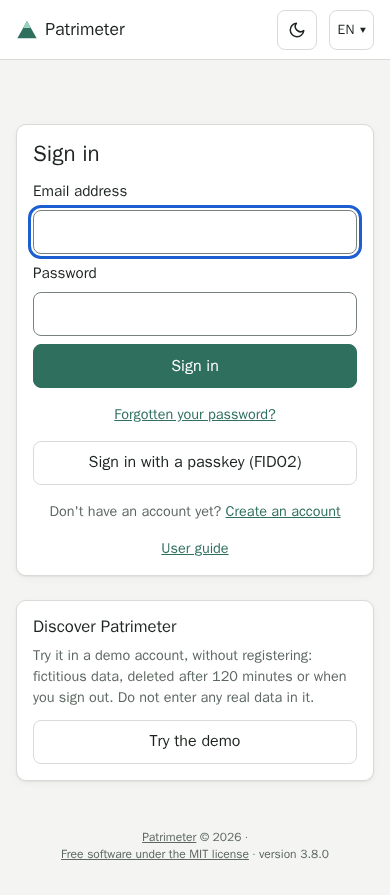
Trying without an account
If the instance offers the demo, the sign-in page shows Try the demo: Patrimeter opens a temporary account at once, without registration or code, filled with fictitious data (three years of wealth, a household budget). A banner reminds you when it will be deleted: after 2 hours, or as soon as you sign out, with everything you entered in it. The security settings, the import, the family account and Carbure are not available in it, and the amount of data is limited. Do not enter any real data in it. The My account menu leads to the accounts and the properties: you can add some. If too many demo accounts have just been created, the sign-in page tells how long to wait.
A guided tour starts at once: a card at the bottom of the screen presents, in thirteen steps, the net worth, the savings goals, the pyramid, the monthly entry, the accounts, the properties, the budget and the report, and outlines the element it talks about. Next and Previous go from one step to another, changing page if needed; Stop the tour closes it. The banner at the top starts it again (Start the guided tour) or, if you left it for another page, resumes it at the step you had reached.
Creating your account
On the sign-in page, Create an account: email address and password (at least 12 characters, hard to guess; a sentence of several words works). A password found in a known leak is refused.
While you type, under the password, a bar and a label show its strength (from Very weak to Very strong), estimated the way the server does: at least Fair is required. Each requirement is ticked (✓) or crossed (✗) as you type: at least 12 characters, without your email address, unpredictable enough, and both entries the same. The search in known leaks happens when you send the form, anonymously. The same indicator comes with the password change (My account) and the password reset.
The next page shows the address you entered: check it. A confirmation email arrives there; its link is valid for 24 hours and asks for the chosen password; without confirmation, the registration is erased after these 24 hours (just start again). If this address already has an account, the email simply tells you so: sign in with your usual password. If registrations are closed on your instance, the administrator creates the account for you.
Authenticator app
The first start has four steps, recalled at the top of each screen ("Step 2 of 4 · about 2 minutes"): your account, security (authenticator app and backup codes), the recovery key, then your first accounts.
At the first sign-in, Patrimeter asks you to set up an authenticator app (mandatory second factor), on the Protect your account screen: scan the QR code, then enter the 6-digit code it shows and Enable and see my backup codes. Patrimeter then shows ten backup codes, each usable once: write them down somewhere safe, they replace the phone if it is lost. Copy the codes puts them in the clipboard, one per line, to paste them into a password manager; Print prints them.
Then, at every sign-in: address and password, then the code from the app (or a backup code).
Recovery key
Patrimeter shows a recovery key, only once, and asks you to type part of it again. Why two secrets? recalls the role of each: the backup codes replace the phone to sign in, the key opens your data again if you forget your password. Print prints the key. Your data is encrypted with a key that only your password opens: without a recovery key, a forgotten password means losing the data (access to the account, however, can be restored). Keep it with your backup codes, for example in a password manager: Copy the key puts it in the clipboard.
Unlocking
After signing in with a passkey that does not unlock, Patrimeter asks for your password to open your data: this is the Unlock screen.
Current month
Under the logo on a computer, in the middle of the top bar on a phone, Patrimeter shows the current month ("November 2026", "Nov 2026" on a phone), whatever the month shown by the page: it is the one the monthly update offers first. A click on it goes back to it: on the same page for the net worth, the report, the monthly update and the budget, otherwise on the Net worth page. On its own, a month is written with a capital in French too ("Novembre 2026"); within a sentence, French keeps the lower case.
Menus
In a sidebar on the left on a computer (from 1,024 pixels wide), at the top on a tablet, at the bottom on a phone: Net worth, Budget, Goals, Challenges (challenges and stars, unless you turned them off), then, always put forward last, Monthly update. Your Accounts and your Real estate open from the Net worth page (buttons at the top), your Tax household and categories from the Budget page. My account, at the bottom of the sidebar (on the right of the top bar), gathers the profile, the security and the AI agents; in the sidebar, its menu and the language one open upwards.
First accounts
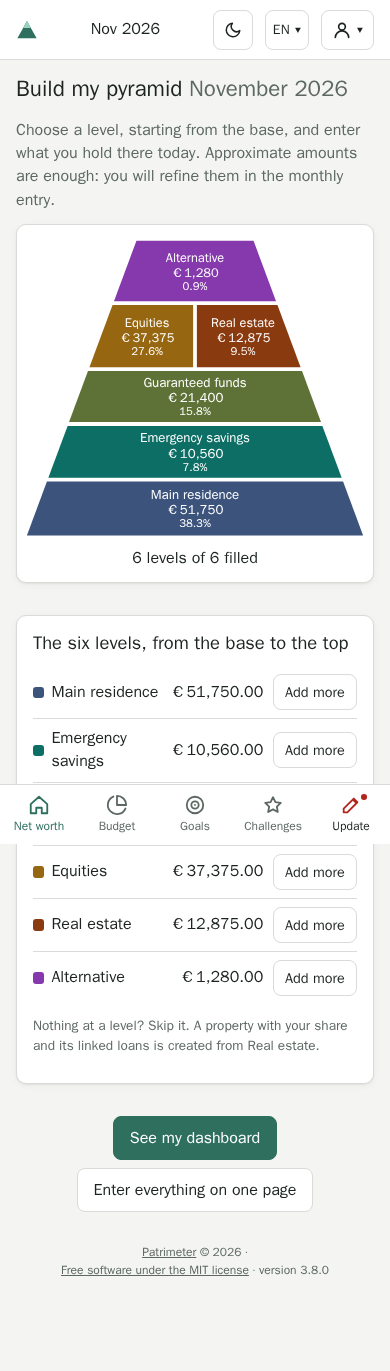
As long as no account exists, the Net worth page stays on the current month and offers, as the last step of the first start, to draw your pyramid (Let's draw your pyramid):
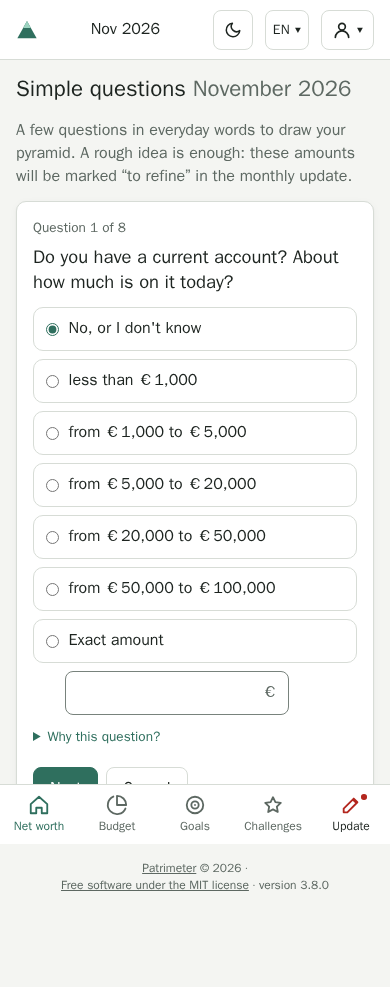
- Answer a few questions (recommended): one question at a time, in everyday words ("Do you have money put aside, available right away?"), answered by a range ("from €1,000 to €5,000"), an exact amount or "No, or I don't know". Why this question? says which level of the pyramid it is about. A range counts for its middle. The last question, optional, chooses your saver style (challenges). Create my accounts creates the accounts answered at once;
- Build my pyramid, if you know your accounts: the empty pyramid, and its six levels from the base to the top. Fill opens a level with its common accounts (current account, Livret A, LDDS, LEP, PEA, life insurance…): enter today's balance of what you hold, leave the rest empty, then Confirm this level; the level takes its colour in the pyramid. I have none goes on to the next one;
- Other ways to start, folded:
- Express entry: all these accounts on a single page, created at once with Create my accounts;
- Import a CSV file: accounts, loans and properties from a spreadsheet (CSV import);
- Create account by account, with every setting: level, nature, opening date (accounts).
A family account is not filled in: under Is this account for a family?, Bring a family together leads to the family members.
The name of each account repeats its type and can be changed. For a loan, enter the outstanding principal. Approximate amounts are enough: they are marked to refine in the monthly entry, until you save them there. The accounts are opened this month, with this balance; if a line is wrong, nothing is created and the page says so. Several accounts of the same type, or a property with your share and its linked loans: add them afterwards from the Net worth page (Accounts, Real estate).
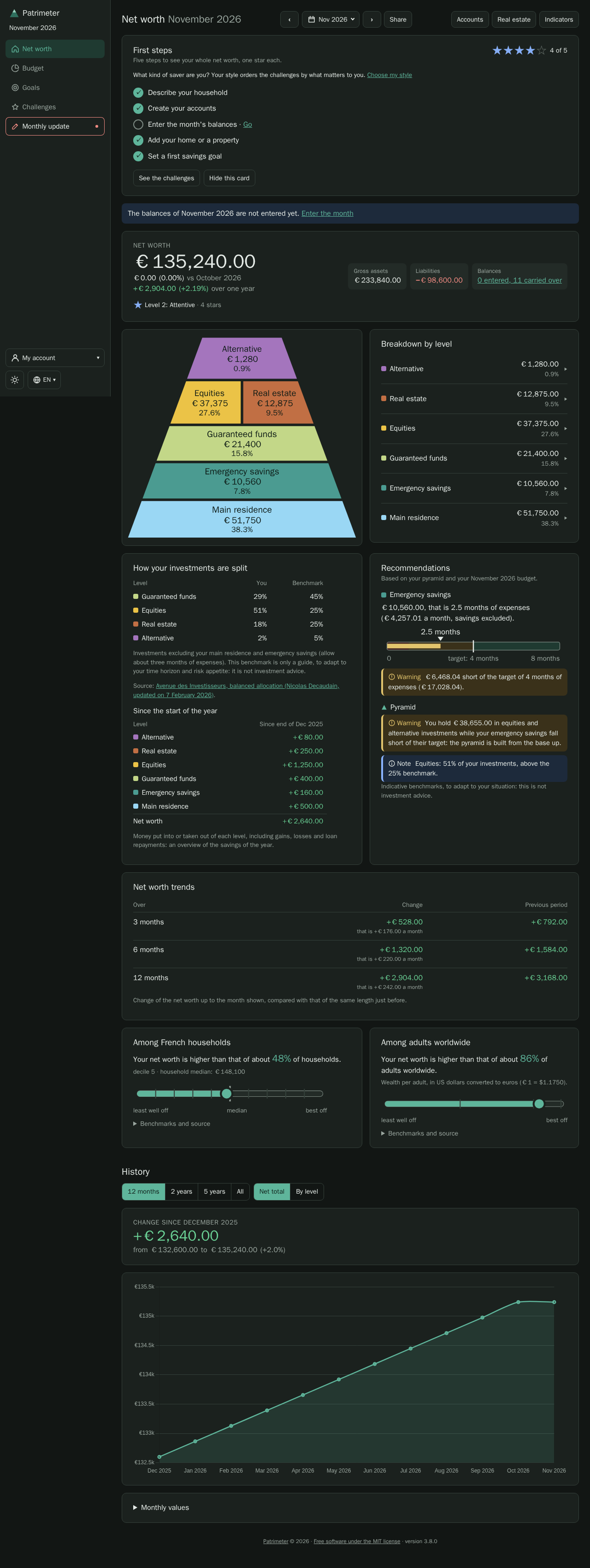
Then, the First steps card guides you until you see your whole net worth (challenges and stars). If the challenges are turned off, a Complete your net worth box offers what is still missing, a property or an account, until both exist.
Theme
The theme button, at the bottom of the sidebar on a computer and at the top of the page otherwise, switches between the light and dark themes; without a choice, the system theme applies. The accent colour and the display density are chosen in My account (appearance).
Language
Patrimeter is shown in French or English: by default in your browser's language (French for any other
language). The language button, next to the theme button, shows the current language (FR or EN); click
it to choose Français or English from the menu. This choice is remembered on this device. Amounts
follow the language: 1 234,56 € in French, €1,234.56 in English. Emails are written in the language of the
page that triggered them.